Overlap Handling
React Native Calendar Kit provides options for handling overlapping events. You can control this behavior using the overlapType prop on the CalendarKit component.
overlapType
The overlapType prop determines how overlapping events are displayed. It accepts one of the following string values:
'no-overlap'(default): Events that overlap in time are displayed side by side without overlapping visually.'overlap': Events are allowed to overlap visually, potentially stacking on top of each other.
Example usage:
<CalendarKit
    events={events}
    overlapType="overlap"
    // ... other props
/>
No-overlap Mode
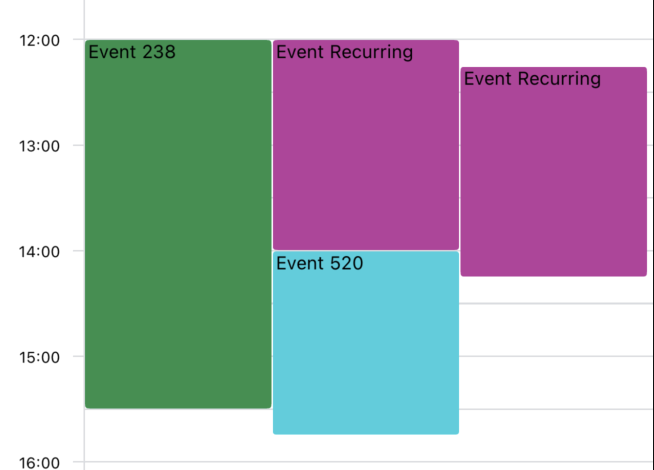
In no-overlap mode:
- Events that occur at the same time are positioned side by side.
- Each event takes up an equal portion of the column width.
- This mode ensures all events are fully visible without any overlapping.
Overlap Mode
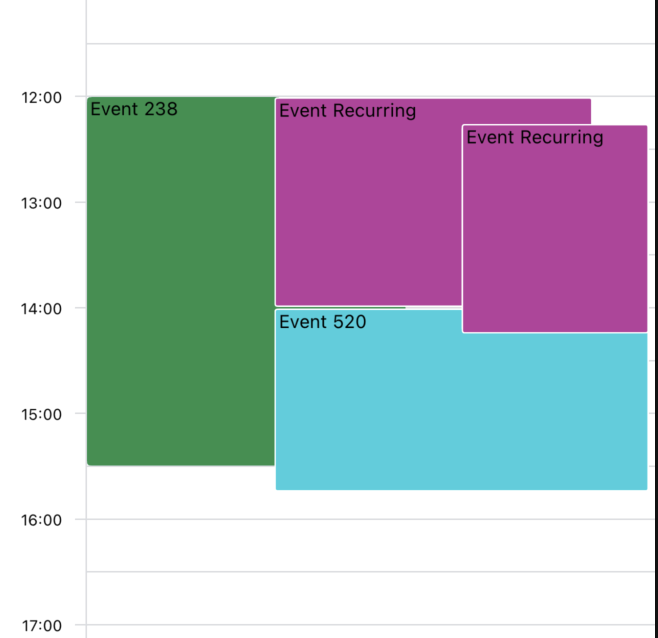
In overlap mode:
- Events are allowed to visually overlap when they occur at the same time.
- This can be useful for displaying dense schedules or when you want to emphasize time conflicts.
Additional Configuration
You can further customize the appearance of events using these related props:
rightEdgeSpacing: Controls the space (in pixels) reserved on the right edge of each day column. Default is 1.overlapEventsSpacing: Sets the spacing (in pixels) between events. Default is 1. (no-overlap mode)minStartDifference: Defines the minimum start time difference (in minutes) for events to be considered overlapping. Default is 30 minutes. (overlap mode)
Example:
<CalendarContainer
    events={events}
    overlapType="overlap"
    rightEdgeSpacing={1}
    minStartDifference={15}
    // ... other props
>
    <CalendarHeader />
    <CalendarBody />
</CalendarContainer>